My Settings cannot be Used on the Multi-display [10/2022 - ]: Procedure
- CHECK PROBLEM SYMPTOMS (MY SETTINGS FUNCTION)
- Confirm problem symptoms
- Confirm the problem symptoms of the My Settings function, and proceed to the respective link.
Result
Problem symptoms Proceed to The settings screen does not display the vehicle name or user name A My Settings cannot be created, stored, deleted or uploaded B A value of the My Settings function cannot be changed A value of the My Settings function changes by itself The data of the My Settings function cannot be transferred to another vehicle The individual cannot be identified C
Result:
B
See step 3
Result:
C
See step 8
Result:
A
See step 2
- Confirm problem symptoms
- INSPECT TELEMATICS SYSTEM
- Check that the telematics system operates normally.
HINT:
Refer to HOW TO PROCEED WITH TROUBLESHOOTING [12/2019 - ]
Result
Result Proceed to Malfunction not occurs A Malfunction occurs B
Result:
A
REPLACE RADIO AND DISPLAY RECEIVER ASSEMBLY
Refer to REMOVAL [10/2022 - 11/2023] , or refer to REMOVAL [11/2023 - ]
Result:
B
GO TO TELEMATICS SYSTEM
- Check that the telematics system operates normally.
- SERVICE CHECK (GNSS CHECK)
- Enter diagnostic mode.
- Select "Function Check/Setting" from the "Service Menu" screen.
- Select "System Sensors Check" from the "Function Check/Setting I" screen.
- Select "Time Setting" from the "System Sensors Check" screen.
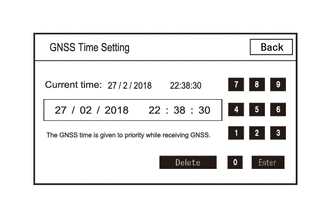
- Check "GNSS Time Setting screen and confirm that "Current time" is set correctly.
Result
Result Proceed to "Current time" is correct A "Current time" is not correct B
Result:
B
GO TO PROBLEM SYMPTOMS TABLE (NAVIGATION FUNCTION)
Refer to PROBLEM SYMPTOMS TABLE [10/2022 - 11/2024] , or refer to PROBLEM SYMPTOMS TABLE [11/2024 - ]
Result:
A
See step 4
- Enter diagnostic mode.
- CHECK USAGE CONDITIONS OF SMARTPHONE AND APPLICATIONS
- Check that the customers smartphone and applications meet the following conditions:NOTE:
If it is necessary to change smartphone settings, update software, etc., make sure to obtain the permission of the customer first.
- The smartphone is turned on
- The smartphone is ready to communicate
- The operation of the smartphone has been confirmed
- The time displayed by the smartphone is correct
- Applications are installed
- Each application is the latest version
- Check for malfunctions and confirm that the device operates correctly.
Result
Result Proceed to Malfunction does not occur A Malfunction occurs B
Result:
A
END (SMARTPHONE OR APPLICATION WAS CAUSE)
Result:
B
See step 5
- Check that the customers smartphone and applications meet the following conditions:
- CHECK CONDITION (USER ID USAGE CONDITION)
- Check that the same user ID is not being used for other vehicles.NOTE:
If it is necessary to confirm the settings of the smartphone, make sure to obtain the permission of the customer first.
HINT:
When My Settings is used in a different vehicle, an on-screen message is displayed.
- Check for malfunctions and confirm that the device operates correctly.
Result
Result Proceed to Malfunction does not occur A Malfunction occurs B
Result:
A
END (SAME USER ID BEING USED FOR OTHER VEHICLE)
Result:
B
See step 6
- Check that the same user ID is not being used for other vehicles.
- CHECK PIN CODE
- Check the PIN CODE matches the registered PIN code.
Result
Result Proceed to PIN CODE does not match A PIN CODE matches B
Result:
A
USING THE APPLICATION, OBTAIN A NEW PIN CODE AND CHECK WHETHER THEY MATCH
Result:
B
See step 7
- Check the PIN CODE matches the registered PIN code.
- CHECK CENTER OPERATION STATUS
- Check that operation is normal from a dealer account in a different vehicle.
Result
Result Proceed to Malfunction occurs A Malfunction does not occur B
Result:
A
END (CENTER WAS CAUSE)
Result:
B
REPLACE RADIO AND DISPLAY RECEIVER ASSEMBLY
Refer to REMOVAL [10/2022 - 11/2023] , or refer to REMOVAL [11/2023 - ]
- Check that operation is normal from a dealer account in a different vehicle.
- CHECK USAGE CONDITIONS
- Check if the application is signed out.
HINT:
When the IG is turned on and "Driver Recognition is disabled" is displayed on the multi-display, the user is signed out.
Result
Result Proceed to The application is signed out A The application is not signed out B
Result:
A
SIGN INTO THE APPLICATION AND CHECK AGAIN
Result:
B
See step 9
- Check if the application is signed out.
- CHECK USAGE CONDITIONS OF SMARTPHONE AND APPLICATIONS
- Check that the customers smartphone and applications meet the following conditions:NOTE:
If it is necessary to change smartphone settings, update software, etc., make sure to obtain the permission of the customer first.
- The smartphone is turned on
- The smartphone is ready to communicate
- Check that the "Bluetooth" setting of the smartphone is set to on
- The operation of the smartphone has been confirmed
- The time displayed by the smartphone is correct
- Applications are installed
- Each application is the latest version
- The application is started and the user is signed in
- The smartphone is displayed on "Bluetooth devices" on the My Settings screen of the in-vehicle device.
- Check for malfunctions and confirm that the device operates correctly.
Result
Result Proceed to Malfunction does not occur A Malfunction occurs B
Result:
A
END (SMARTPHONE OR APPLICATION WAS CAUSE)
Result:
B
REPLACE RADIO AND DISPLAY RECEIVER ASSEMBLY
Refer to REMOVAL [10/2022 - 11/2023] , or refer to REMOVAL [11/2023 - ]
- Check that the customers smartphone and applications meet the following conditions: