Smart Key Immobilizer Reset And Add/Remove Key (T-SB-0013-24 REV1)
Reference number: T-SB-0013-24 REV1
Supersedes refnos: T-SB-0013-24
SMART KEY IMMOBILIZER RESET AND ADD/REMOVE KEY
TECHNICAL SERVICE BULLETIN
| TOYOTA: | 2022 - 2025 4Runner, Corolla Cross, Corolla Cross HV, Prius, Sequoia HV, Tundra, Tundra HV; 2023 - 2025 86, bZ4X, Camry, Camry HV, Crown, GR Corolla; 2019 - 2022 Avalon, Avalon HV; 2019 - 2025 Corolla Hatchback, RAV4, RAV4 HV; 2020 - 2025 Corolla, Corolla HV; 2024 - 2025 Grand Highlander, Grand Highlander HV, Tacoma, Tacoma HV; 2021 - 2025 Highlander, Highlander HV, Mirai, Sienna HV, Venza HV; 2025 Prius PHV, RAV4 PHV; 2022 - 2024 Prius Prime; 2021 - 2024 RAV4 Prime |
| SERVICE CATEGORY: | Vehicle Interior |
| SECTION: | Theft Deterrent/Keyless Entry |
| MARKET: | USA |
| COPYRIGHT: | © 2018 Toyota, USA License Agreement TMS1002 |
APPLICABILITY
| YEAR(S) | MODEL(S) | ADDITIONAL INFORMATION |
|---|---|---|
| 2022 - 2025 | 4Runner, Corolla Cross, Corolla Cross HV, Prius, Sequoia HV, Tundra, Tundra HV | |
| 2023 - 2025 | 86, bZ4X, Camry, Camry HV, Crown, GR Corolla | |
| 2019 - 2022 | Avalon, Avalon HV | |
| 2019 - 2025 | Corolla Hatchback, RAV4, RAV4 HV | |
| 2020 - 2025 | Corolla, Corolla HV | |
| 2024 - 2025 | Grand Highlander, Grand Highlander HV, Tacoma, Tacoma HV | |
| 2021 - 2025 | Highlander, Highlander HV, Mirai, Sienna HV, Venza HV | |
| 2025 | Prius PHV, RAV4 PHV | |
| 2022 - 2024 | Prius Prime | |
| 2021 - 2024 | RAV4 Prime |
REVISION NOTICE
February 10, 2025 Rev1:
- Applicability has been updated to include 2025 model year 4Runner, Corolla, Corolla Cross, Corolla Cross HV, Corolla Hatchback, Corolla HV, Crown, GR Corolla, Grand Highlander, Grand Highlander HV, Highlander, Highlander HV, Mirai, Prius, Prius PHV, RAV4, RAV4 HV, RAV4 PHV, Sequoia HV, Sienna HV, Tacoma, Tacoma HV, Tundra, Tundra HV, and Venza HV and 2023 - 2025 86, bZ4X, Camry, and Camry HV vehicles.
- The Required Tools & Equipment section has been updated.
Any previous printed versions of this bulletin should be discarded.
SUPERSESSION NOTICE
The information contained in this bulletin supersedes Service Bulletin No. T-SB-0064-18.
- Applicability has been updated to include 2022 model year Avalon and Avalon Hybrid; 2022 - 2024 model year 4Runner, Corolla, Corolla Cross, Corolla Cross Hybrid, Corolla Hatchback, Corolla Hybrid, Highlander, Highlander Hybrid, Mirai, Prius, Prius Prime, RAV4, RAV4 Hybrid, RAV4 Prime, Sienna Hybrid, Sequoia Hybrid, Tundra, Tundra Hybrid, and Venza Hybrid; 2023 - 2024 model year Crown and GR Corolla; and 2024 model year Grand Highlander, Grand Highlander Hybrid, Tacoma, and Tacoma Hybrid vehicles.
- The Opening Smart Access in GTS+, Pre-approved Immobilizer Reset Smart Code Registration, and Undesignated Key Permanent Erasure sections have been updated.
Service Bulletin No. T-SB-0064-18 is obsolete, and any printed versions should be discarded.
INTRODUCTION
The Immobilizer and Smart Key Reset is a feature that allows the registration of new keys when all master keys are lost. Once the system is reset, all previously registered keys will be erased and can never be reused . Another feature, Add/Remove Key, is also available. Once a key is removed, it can never be reused.
Follow the procedures in this bulletin to reset a vehicle Immobilizer or Smart Key system and to add and/or remove a key.
WARRANTY INFORMATION
| OP CODE | DESCRIPTION | TIME | OFP | T1 | T2 |
|---|---|---|---|---|---|
| N/A | Not Applicable to Warranty | - | - | - | - |
REQUIRED TOOLS & EQUIPMENT
| SPECIAL SERVICE TOOLS (SST) | PART NUMBER | QTY | ||
|---|---|---|---|---|
| Battery Diagnostic Tool(1) | DCA-8000P T | 1 | ||
|
||||
| REQUIRED EQUIPMENT | SUPPLIER | PART NUMBER | QTY | ||
|---|---|---|---|---|---|
| Techstream ADVi(1) | ADE | TSADVUNIT | 1 | ||
| Techstream 2.0 | TS2UNIT | ||||
| Techstream Lite | TSLITEPDLR01 | ||||
| Techstream Lite (Green Cable) | TSLP2DLR01 | ||||
|
|||||
- Only ONE of the Techstream units listed above is required.
- GTS+ Software version 2024.04.004.02 or later is required.
- Additional Techstream units may be ordered by calling Approved Dealer Equipment (ADE) at 1-800-368-6787 or by visiting TIS - Diagnostics - Tools & Equipment - Techstream Order Portal.
SYMPTOM CHART
| SYMPTOM | ACTION | PROCEDURE | PG. |
|---|---|---|---|
| Lost ALL Keys | Delete ALL Keys | Immobilizer Reset | 7 |
| Add NEW Keys to Vehicle | Add More Than One New Key if Performed Post Immobilizer Reset | Smart Code Registration | 24 |
| Key(s) is (are) Lost or Stolen and/or Request to Remove ANY Key NOT Present From the Vehicle | Delete One or More Keys, NOT ALL Keys | Undesignated Key Permanent Erasure | 31 |
SECURITY AUTHORIZATION FOR THE RESET PASS-CODE
Improved security measures have been implemented in TIS and there are additional parameters obtained from the vehicle during Immobilizer Reset. A secondary approval by dealer management is required each time an Immobilizer or Smart Key Reset is performed.
Please review the following flowchart and become familiar with the options outlined BEFORE attempting a reset.
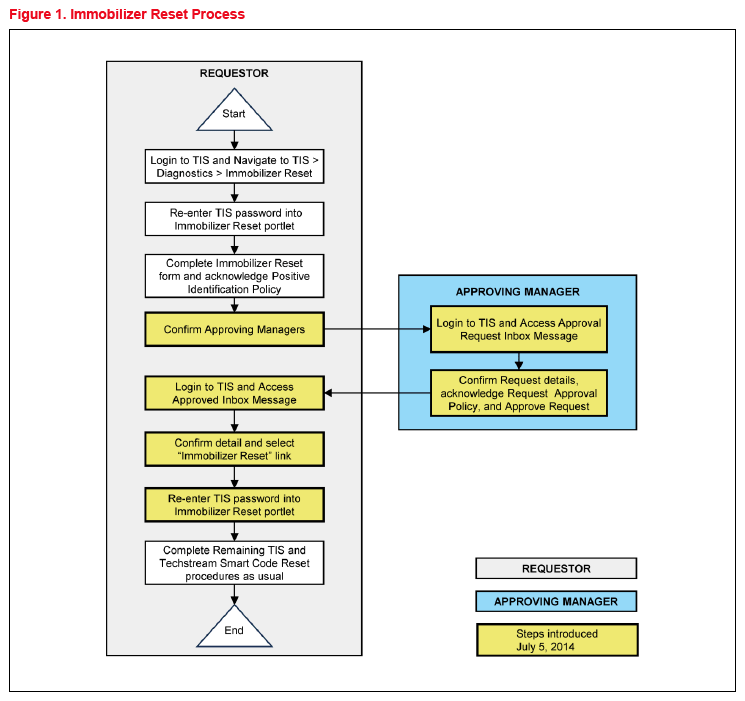
Key Points:
- The reset request can be submitted from GTS+ in the vehicle or on TIS BEFORE the vehicle is available.
- A single management approval can be used multiple times for the same VIN until the vehicle repair is complete.
- Each reset attempt for the same VIN will generate a NEW seed number and a unique passcode.
- The request and approval hand-off between the technician and management is completed on the TIS home page inbox, accessed at each individual's location (GTS+, office, etc.).
Main Steps:
- Obtain Authorization
- Technician Reset Approval Request
- Manager Access TIS Inbox Message and Approval
- Perform Reset Via GTS+
- Access Approval TIS Inbox Message
- Perform Reset at Vehicle
Variations:
- Pre-approval BEFORE Vehicle is Accessed (per Main Steps)
- Request and Receive Approval From GTS+ AFTER Entering the Reset Utility
- Repeated Reset Attempts With GTS+ by Accessing the Single Approval File
Approving Managers:
Once the Pass-Code Request form is completed, an approval request will be sent to ALL approving managers. Dealership personnel with the following job titles in Staffmaster are granted passcode approval capability: Dealer Principal, General Manager, Service Manager, Service Director, Service/Parts Director, Parts Manager, Parts Director, Customer Relations Manager, Customer Satisfaction Manager, Shop Foreman, Diagnostic Specialist, Team Leader.
Each dealer MUST have AT LEAST two enrolled managers to access ANY passcodes.
Please review the GTS+ and TIS screenshots in this bulletin to become familiar with the management authorization process flow.
RESET APPROVAL REQUEST (TIS PRE-APPROVAL)
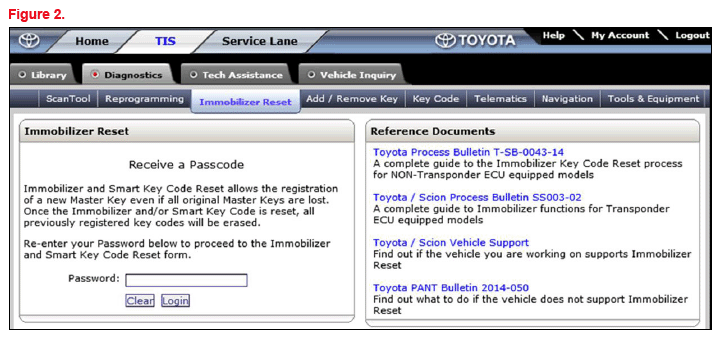
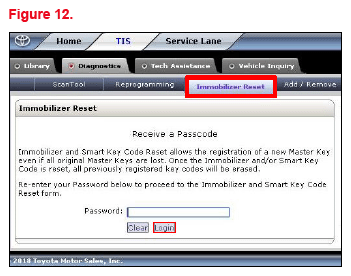
- Open TIS - Diagnostics - Immobilizer Reset .
- Log in using your password.
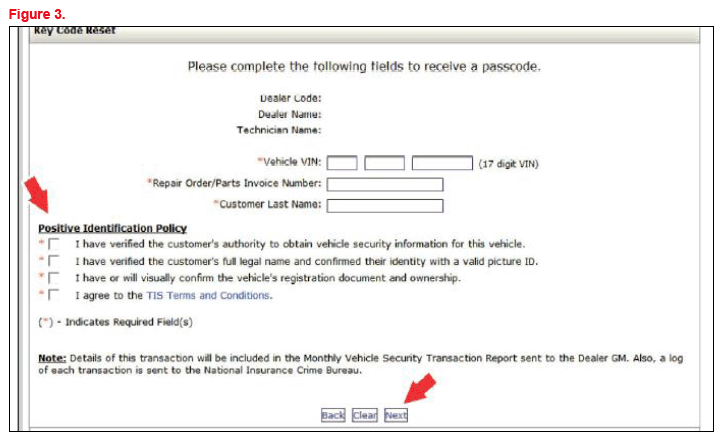
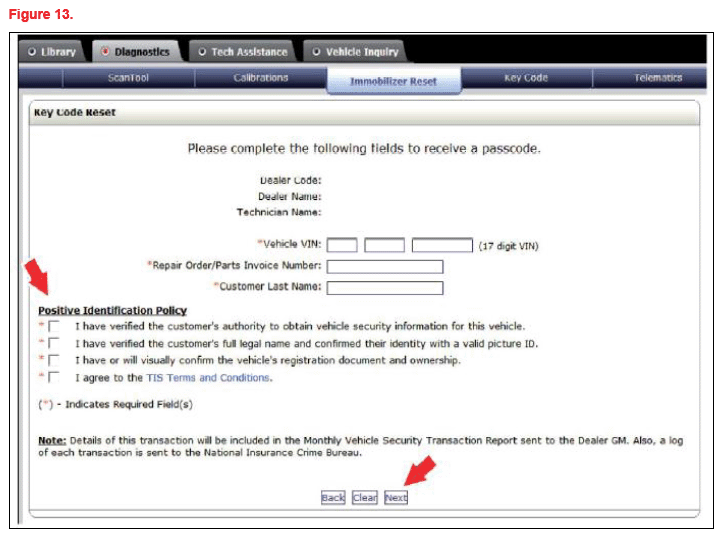
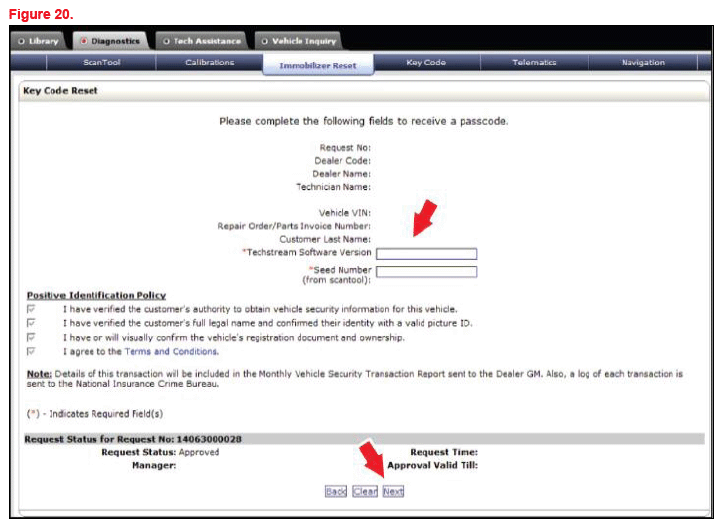
- Populate the boxes with the correct information. Then, read the Positive Identification Policy and check the boxes once the indicated tasks are completed.
- Select Next to continue.
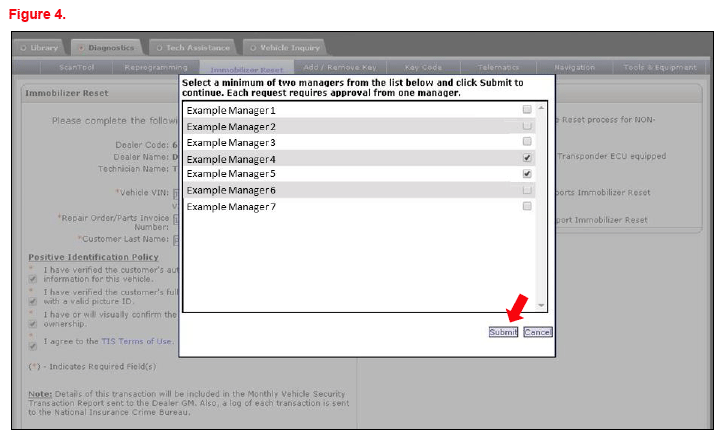
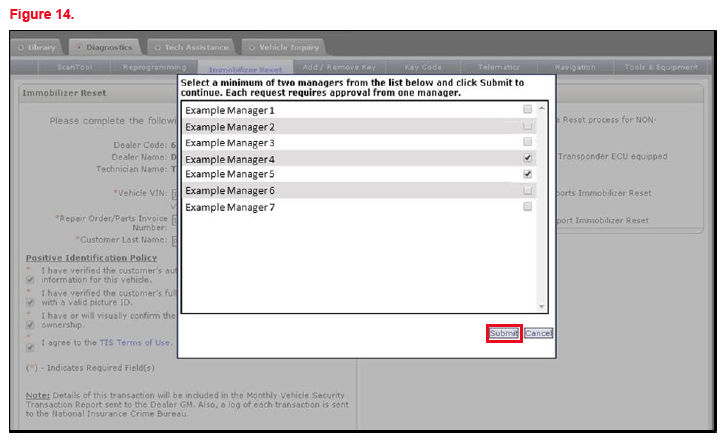
- AFTER two or more managers are selected, select Submit.NOTE: It is required to select AT LEAST two managers.
Each request MUST receive approval by one manager.
OPENING SMART ACCESS IN GTS+
Review the GTS+ and TIS screenshots in this bulletin.
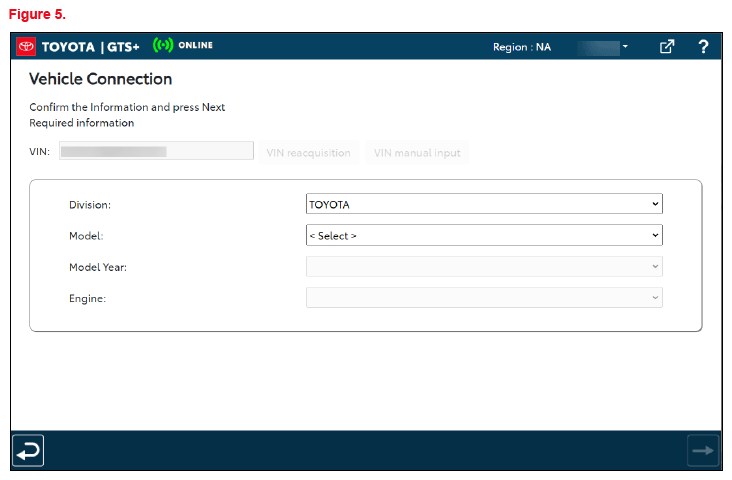
- Connect GTS+ to the vehicle.
If the ignition CANNOT be turned on or the information does NOT automatically populate, choose the appropriate vehicle model and year and enter the VIN in ALL capital letters.
NOTE: If the battery is low of charge, attaching a battery charger may be necessary to maintain battery voltage during Immobilizer Reset.- The battery diagnostic tool MUST be used in Power Supply Mode to maintain battery voltage at 13.5V while flash reprogramming the vehicle.
- For details on how to use the battery diagnostic tool, refer to the DCA-8000 Instruction Manual located at TIS - Diagnostics - Tools & Equipment - Battery Diagnostics.
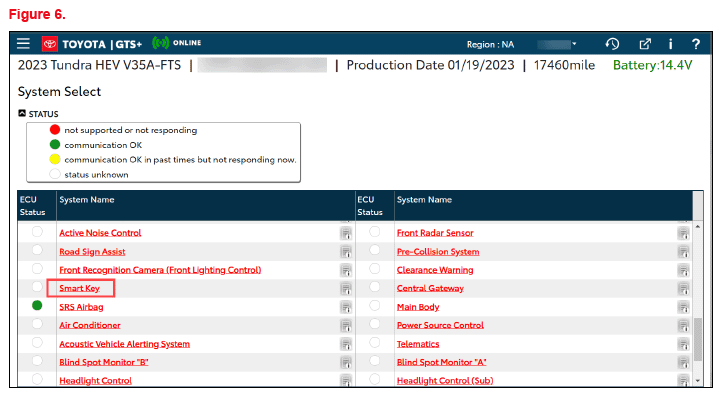
- After connecting to the vehicle, Select System Select from the main menu, then select the Smart Access or Smart Key ECU.
PRE-APPROVED IMMOBILIZER RESET
Please review the GTS+ and TIS screenshots in this bulletin.
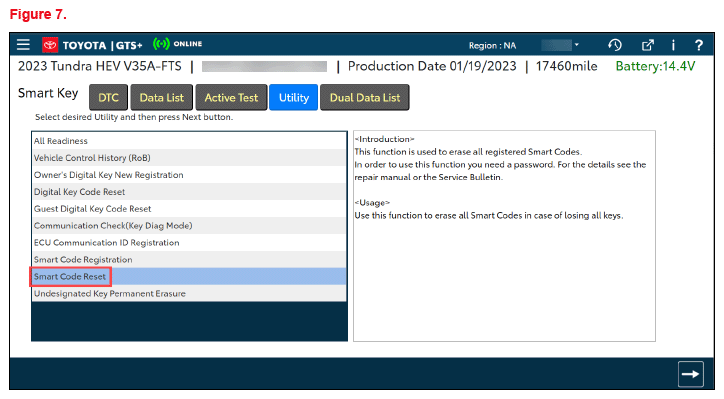
- Select Smart Code Reset from the Utility menu.
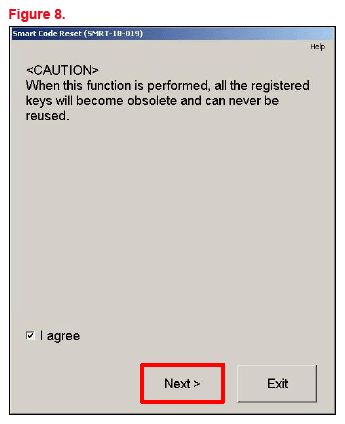
- Read the warning, check I agree, then select Next.
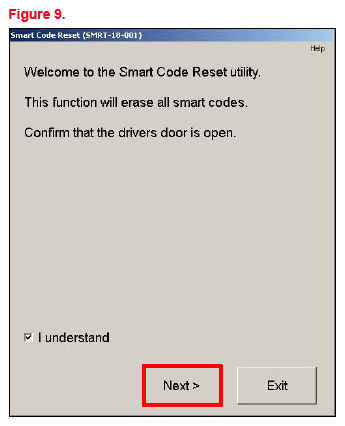
- Open the driver's door, check I understand, then select Next.
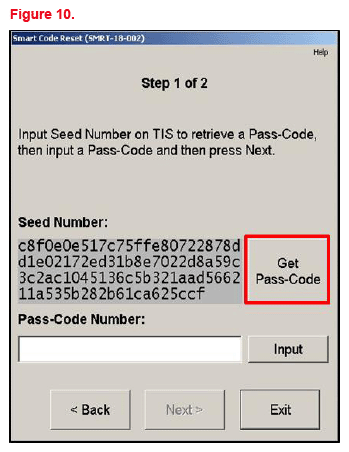
- Select Get Pass-Code.
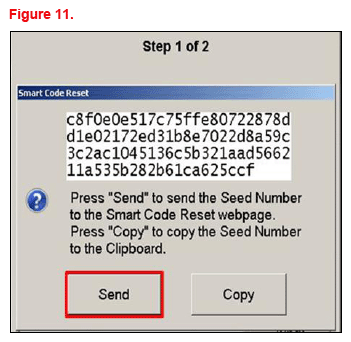
- Copy may be selected to copy the seed number to the computer's clipboard.
- Select Send to open a link to TIS.
Does the manager approval file for this VIN exist in your TIS inbox?
- YES
- Go to section
Approved Immobilizer Reset .
- NO - Open the approval file in your TIS inbox and enter the most recent seed number to get the passcode and continue to step 7.
- YES
- Go to section
- Make sure the Immobilizer Reset tab is selected.
- Enter the password and click Login.
- Fill in the required information, then select Next.
- AFTER two or more managers are selected, select Submit.NOTE: It is required to select AT LEAST two managers.
Each request MUST receive approval from one manager. - After manager approval is received, go to the Approved Immobilizer Reset section on pg. 17.
MANAGER APPROVAL
Please reference the TIS screenshots in this bulletin.
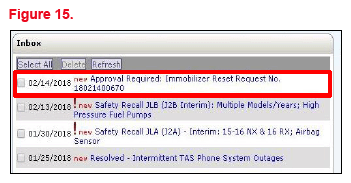
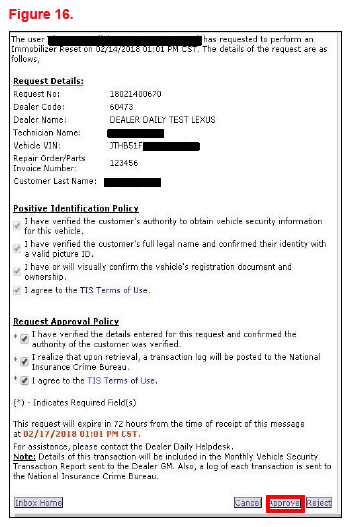
- AFTER the request is submitted, one of the authorized dealer managers will locate the technician's request in their TIS home page inbox.
- Select the title to open the Request.
- Read the Request Approval Policy, then check the boxes AFTER the indicated tasks are completed.
- Select Approve to send the approval to the technician.
APPROVED IMMOBILIZER RESET
Please reference the GTS+ and TIS screenshots in this bulletin.
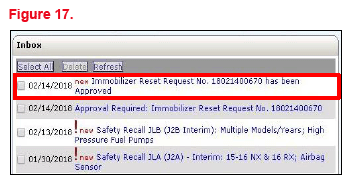
- AFTER approval is received by management, open the TIS inbox and locate the Immobilizer Reset Request.
- Select the title to open the approval.NOTE:
- It is recommended to retrieve the passcode from the GTS+ connected to the vehicle as the seed number and passcode work together.
- AFTER approval is received by management, multiple resets can be performed for a single VIN. Each attempt will create a NEW seed number and resultant passcode.
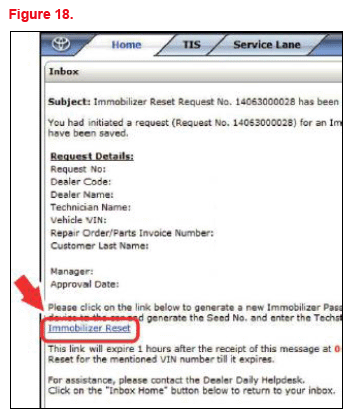
- Select the Immobilizer Reset link.
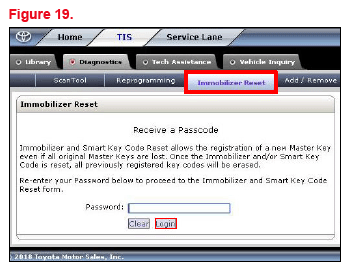
- Make sure the Immobilizer Reset tab is selected.
- Enter the password and select Login.
- Enter the GTS+ software version and paste the seed number from GTS+.
- Select Next.
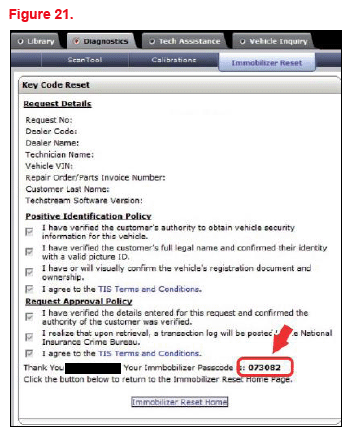
- Retrieve the passcode in the location shown.NOTE:
- Do NOT resubmit another approval for this vehicle if the file from management has been received in TIS and it shows the approval status for the given VIN.
- Open the approval file and enter a NEW seed number to get the unique passcode for each attempt.
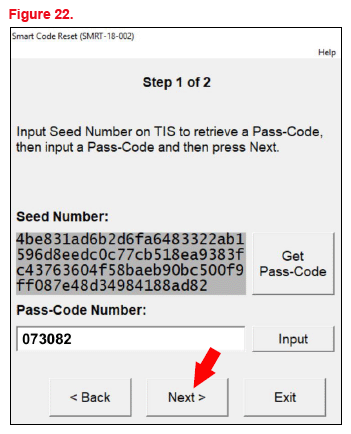
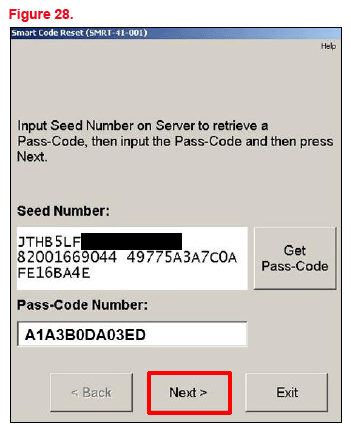
- AFTER retrieving the passcode, copy and paste it (with no additional blank spaces) into the Pass-Code Number box and select Next.NOTE: AFTER selecting Next, another passcode will be requested.
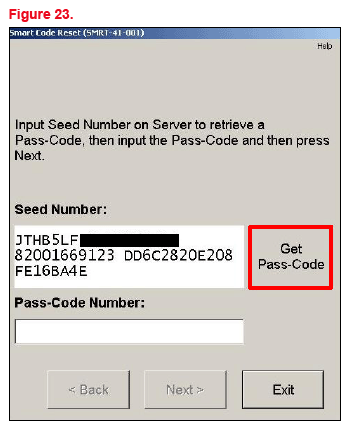
- Select Get Pass-Code.
- Select Send to open a link to TIS.
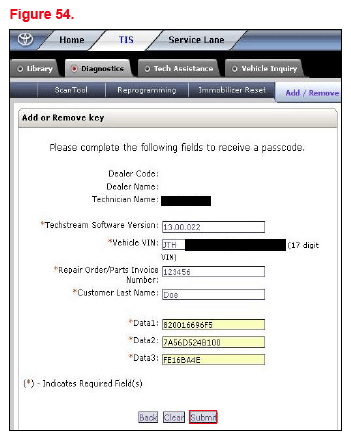
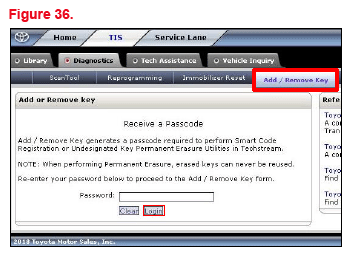
- Enter the password in the Add/Remove Key tab and select Login.NOTE: Make sure the Add/Remove Key tab is selected.
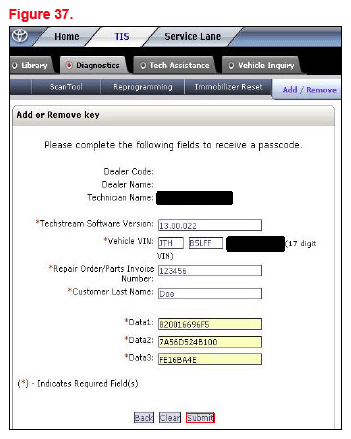
- AFTER the boxes are filled in with the information from the previous GTS+ screen, select Submit.
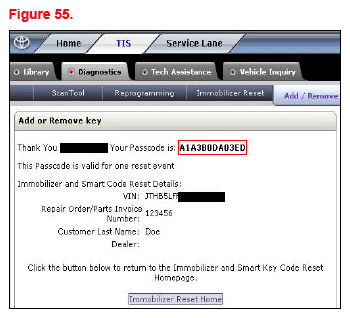
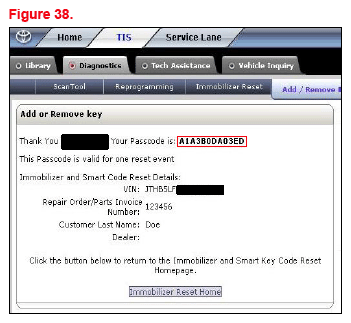
- The bolded passcode can be copied and pasted back into GTS+.
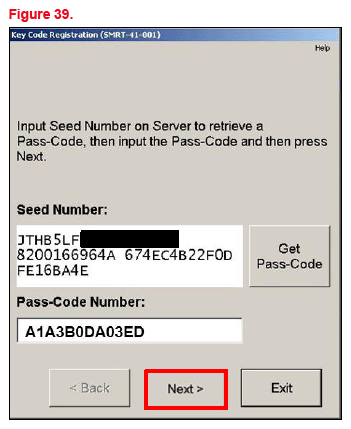
- Copy and paste the number (with no additional spaces) into the Pass-Code Number box and select Next.
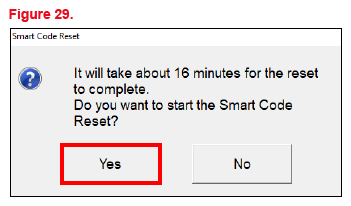
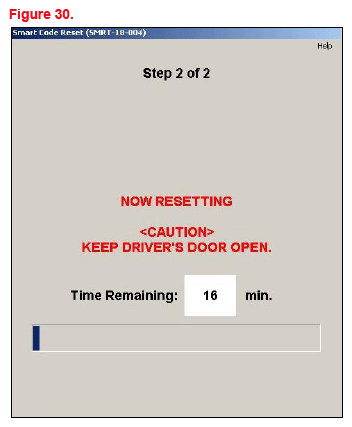
- AFTER a confirmation message pops up, select Yes.
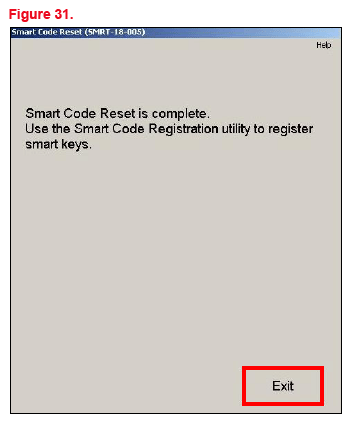
- Smart Code Registration may now be used to register Smart Keys.
- Select Exit.
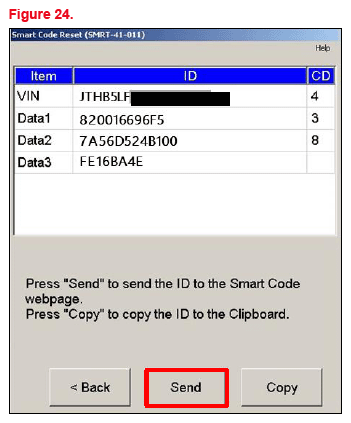
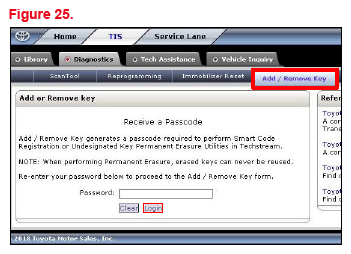
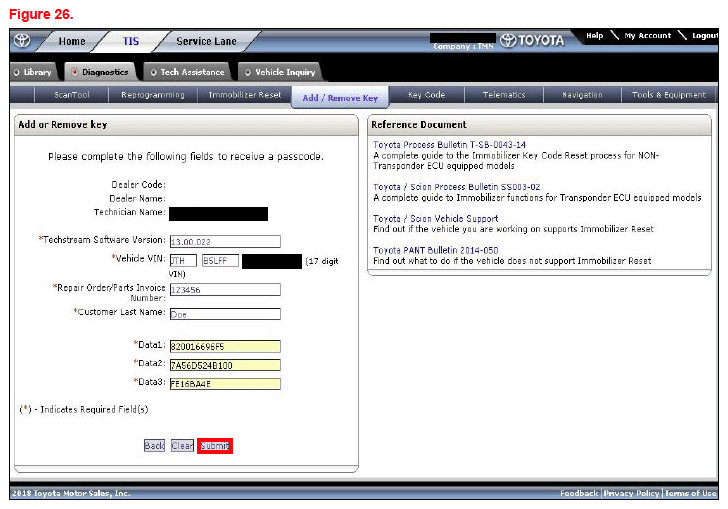
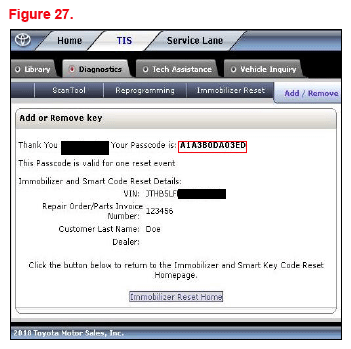
SMART CODE REGISTRATION
Reference the GTS+ and TIS screenshots in this bulletin.
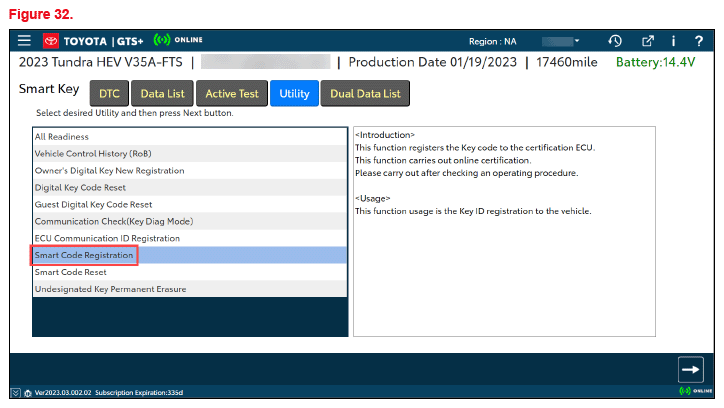
- Select Smart Code Registration.
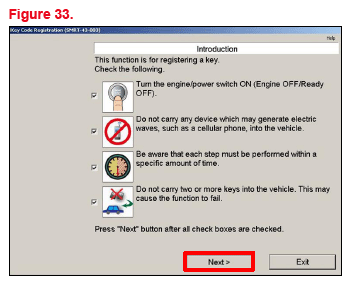
- Read the instructions, check each item, and select Next.
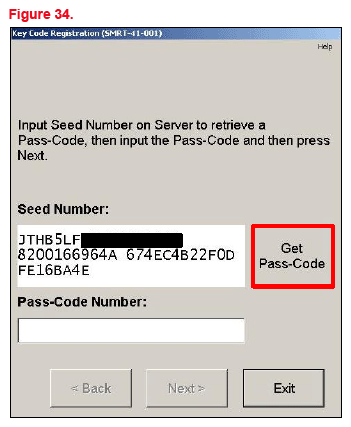
- Select Get Pass-Code.
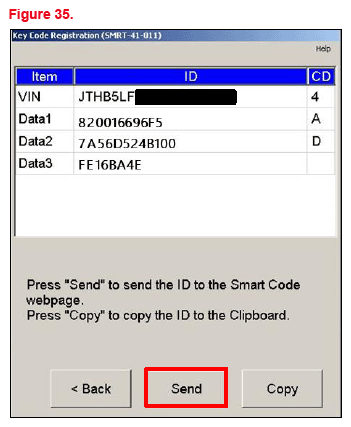
- Select Send to open a link to TIS.
- Make sure the Add/Remove Key tab is selected.
- Enter the password and select Login.
- Make sure each text box is populated with the correct information from the previous GTS+ screen.
- Select Submit.
- The bolded passcode may be copied and pasted back into GTS+.
- Copy and paste the number (with no additional spaces) into the Pass-Code Number box and select Next.
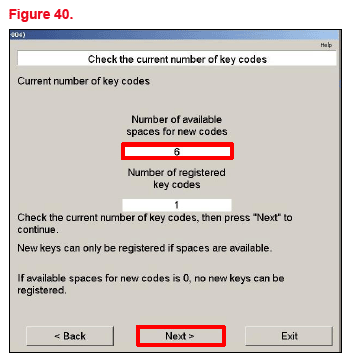
- Make sure there is enough room for additional key codes. The white box outlined in red shows the number of available spaces to add this session's NEW key(s).
- AFTER confirmation of step 11, select Next.
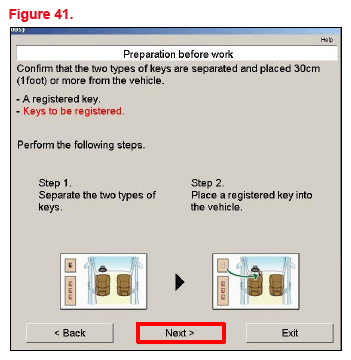
- Place the currently registered key and the NEW unregistered key(s) outside the vehicle.
- BEFORE the procedure begins, bring the registered key into the vehicle.
- Select Next.
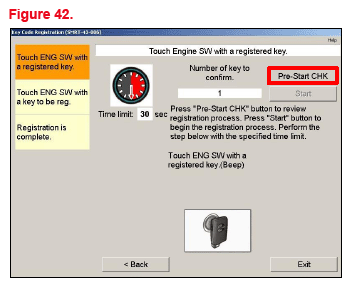
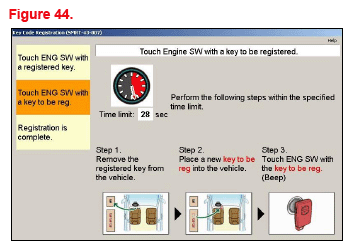
- Touch the ignition switch with the registered key.
- Select Pre-Start CHK to review the registration process.NOTE: Pre-Start CHK MUST be selected BEFORE continuing to the next step.
- AFTER the Pre-Start CHK is reviewed, close it, and select Start.
- Touch the ignition switch with the NEW key. The vehicle will beep twice AFTER each key is registered.NOTE: If adding keys AFTER performing an immobilizer reset, multiple keys can be added at a time. The vehicle will beep once each time a NEW key is registered. Repeat this step until ALL NEW keys are registered.
- Function-check the keys by pressing the buttons (lock/unlock/panic/trunk) and make sure the vehicle will start with the key.
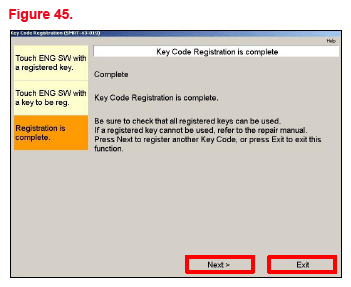
- Select Next to restart the process to add another key.
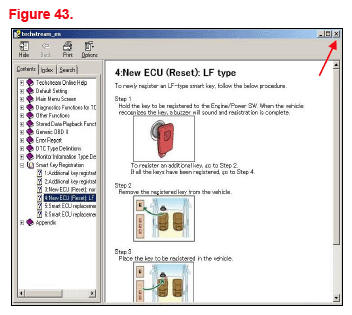
- Select Exit to close the utility.
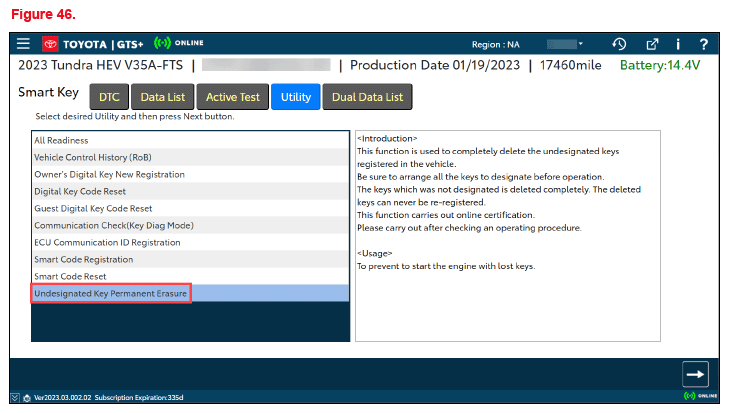
UNDESIGNATED KEY PERMANENT ERASURE
Reference the GTS+ and TIS screenshots in this bulletin.
- Select Undesignated Key Permanent Erasure.NOTE: Make sure ALL keys to be reused are present.
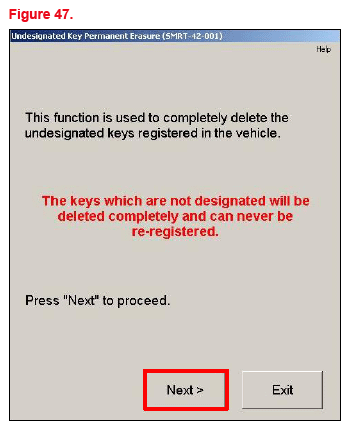
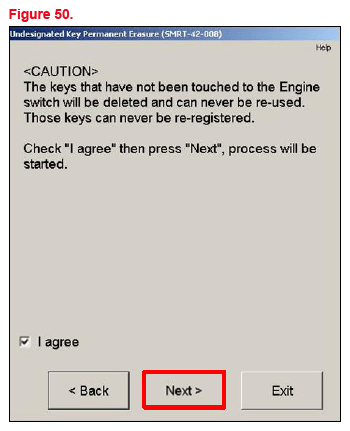
- Read the warning message BEFORE continuing. The keys that are NOT present in this procedure will be permanently erased from the vehicle. Erased keys will NOT be functional on this, or ANY vehicle.
- Select Next.
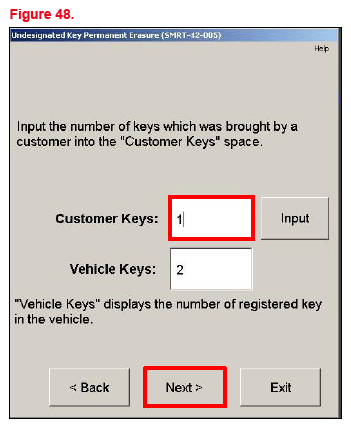
- Input the number of customer keys that are present and select Next.
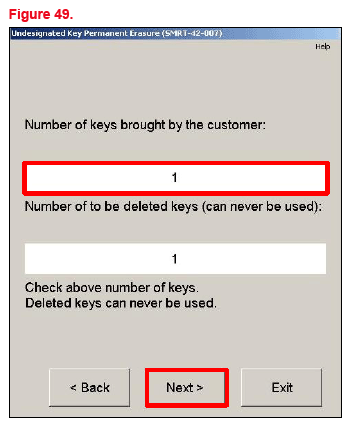
- The customer keys listed will NOT be erased during the procedure. Confirm the numbers of keys to be kept, then select Next.
- Confirm that ONLY the keys touched to the ignition are to be kept. ALL other keys NOT touched to the ignition will be deleted and CANNOT be reused on ANY vehicle.
- Check I agree, then select Next.
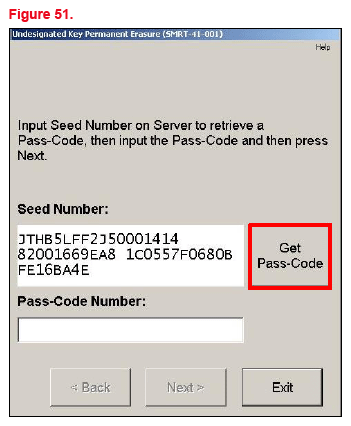
- Select Get Pass-Code.
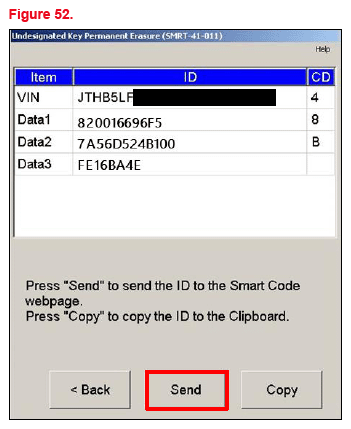
- Select Send to open a link to TIS.
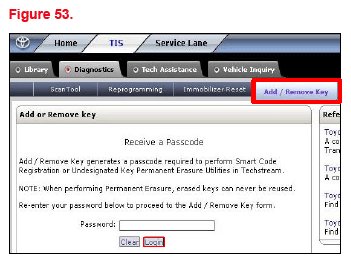
- Make sure the Add/Remove Key tab is selected.
- Enter the password and select Login.
- Make sure each text box is populated with the correct information from the previous screen.
- Select Submit.
- The bolded passcode may be copied and pasted back into GTS+.
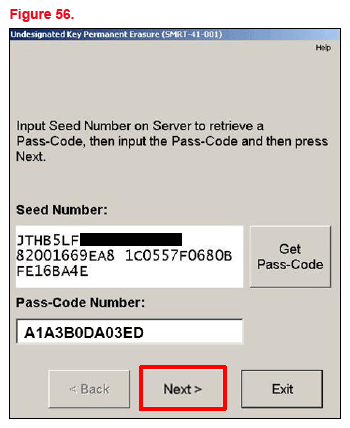
- Copy and paste the number into the Pass-Code Number text box.
- Select Next.
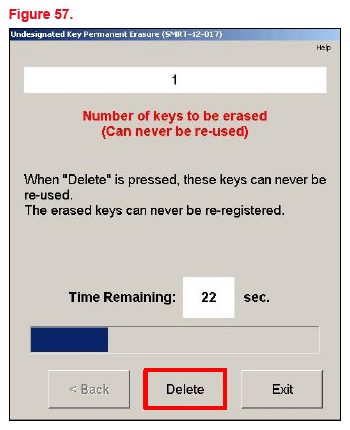
- One at a time, touch the keys to the ignition switch. The vehicle will beep once per key.
- Once ALL keys have touched the ignition switch, select Delete to permanently remove ALL keys that did NOT touch the ignition switch.NOTE: There is a 30-second timer for this procedure.
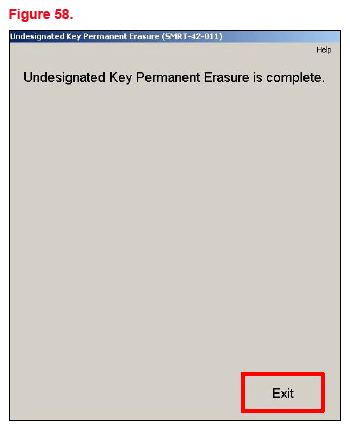
- Undesignated Key Permanent Erasure is now complete. The keys that were NOT touched to the ignition will no longer work on ANY vehicle.
- Select Exit.