Diagnosis System [10/2022 - ]
- CHECK FOR DTCs (USING SYSTEM CHECK MODE SCREEN)
HINT:
When system self-diagnosis DTCs cannot be output due to a malfunction that is preventing diagnosis mode from being started or the multi-display from displaying, read the DTCs using the GTS.
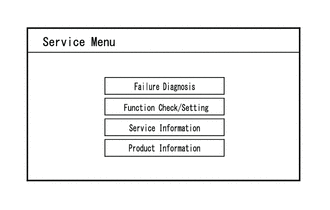
- Start diagnosis and display the "Service Menu" screen.
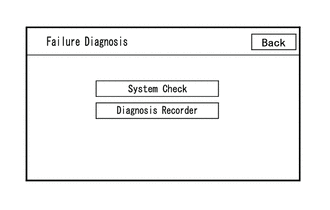
- Select "Failure Diagnosis" on the service menu screen to display the failure diagnosis screen.
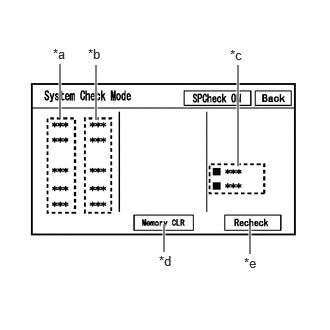
- Select "System Check" of the failure diagnosis screen to display the system check mode screen.SYSTEM CHECK MODE SCREEN DESCRIPTION
Display Content *a: Device Name List Displays the components names, including additional devices (the physical address is displayed if the name is unknown) *b: Check Result Displays the inspection result of connected devices *c: Optional Device Name List Displays the components names, including aftermarket devices *d: Memory Clear Clear current DTCs and confirmed DTCs (press and hold for 3 seconds or more) *e: Recheck Performs a check again - Confirm that each of the following connected devices are displayed:
Name Component Connection Method AVN Radio and display receiver assembly - DSP-AMP Stereo component amplifier assembly*1 AVC-LAN Qi Mobile wireless charger cradle assembly*2 Local CAN IF-BOX_USB No. 1 stereo jack adapter assembly USB DCM DCM (telematics transceiver)*3 USB - *1: w/ "JBL" Sound System
*2: w/ Wireless Charging System
*3: w/ Telematics System
HINT:
- When diagnosis starts, the system check mode screen is displayed and the check is performed.
- System check mode displays the inspection results screen based on the response for each device during "system inspection instruction", "system inspection result demand", etc., and "Normal Diagnosis Notice", notifications.
- The displayed screen is an example only. The actual device name displayed on the screen may differ depending on the connected device (dealer installed options, etc.).
- *1: w/ "JBL" Sound System
- CHECK SYSTEM CHECK RESULTS (AVC-LAN/USB/LOCAL BUS CONNECTED DEVICES)
Check result Meaning OK No DTCs are stored DETAIL
(*1)DTCs are stored NCON
(*2)- A device that was previously registered to the system is not responding during registration
- Cannot confirm a connection of a device that was previously registered to the system
NRES No response of diagnosis information Device name and/or system check result cannot be displayed for AVC-LAN*2/USB/LOCAL BUS CONNECTED DEVICES No history of a device being registered to the system, and no response during the diagnosis check *1: When the "DETAIL" button is pressed, the system transitions to the unit check mode screen.
*2: If "NCON" is displayed for all AVC-LAN connected devices or all AVC-LAND connected devices are not displayed, refer to the troubleshooting procedure for AVC-LAN malfunction.
- Confirm that each of the following connected devices are displayed:
- Unit Check Mode
- When "DETAIL" is displayed on the system check mode inspection results, the system transitions to the unit check mode screen when pressed.
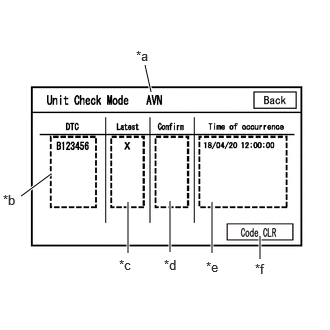
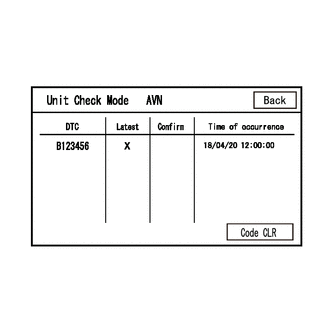
- Confirm and record the DTCsUNIT CHECK MODE SCREEN DESCRIPTION
Display Content *a: Device name Target device name *b: History DTC Displays stored DTCs (up to 6 items) for the target device *c: Latest An "X" is displayed for the target device when latest DTCs (latest malfunction in current trip) exist *d: Confirm An "X" is displayed for the target device when confirmed DTCs (diagnostic trouble codes that have been confirmed up until the current time) exist *e: Time of occurrence Displays the time that the DTC was stored *f: Code CLR Clears DTC information of the target device and clears the display NOTE:A maximum of 6 codes are stored for the radio and display receiver assembly. When it is suspected that more than 6 codes are output, confirm the DTCs using the GTS.
HINT:
Unit check mode screen is updated once per second.
- CLEAR DTC (USING SYSTEM CHECK MODE SCREEN)
- ENTER DIAGNOSTIC MODE
HINT:
- When system self-diagnosis DTCs cannot be output due to a malfunction that is preventing diagnosis mode from being started or the multi-display from displaying, read the DTCs using the GTS.
- Enter diagnostic mode by performing one of the following methods.
- Start method 1
- Start method 2
- Ensure that the vehicle is stopped.
- Turn the ignition switch to ON.
- Turn off the multi-display.
- Turn off the audio of the radio and display receiver assembly.
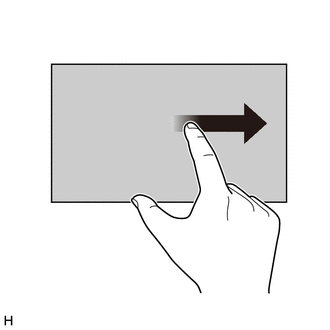
- Flick the multi-display 5 times from left to right as shown in the illustration.
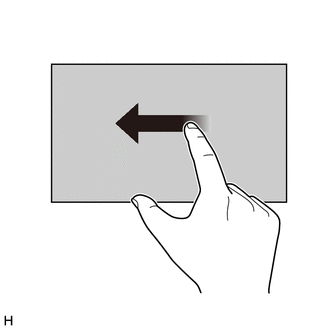
- Flick the multi-display 5 times from right to left as shown in the illustration.
HINT:
Make sure to complete the operation within 15 seconds of performing the initial flick from left to right.
- When diagnosis starts, the service menu screen is displayed.
HINT:
If diagnosis does not start due to a failed operation, turn the display on then off and perform the procedure from the start. (Only turning the audio of the radio and display receiver assembly from off to on is not a valid method)
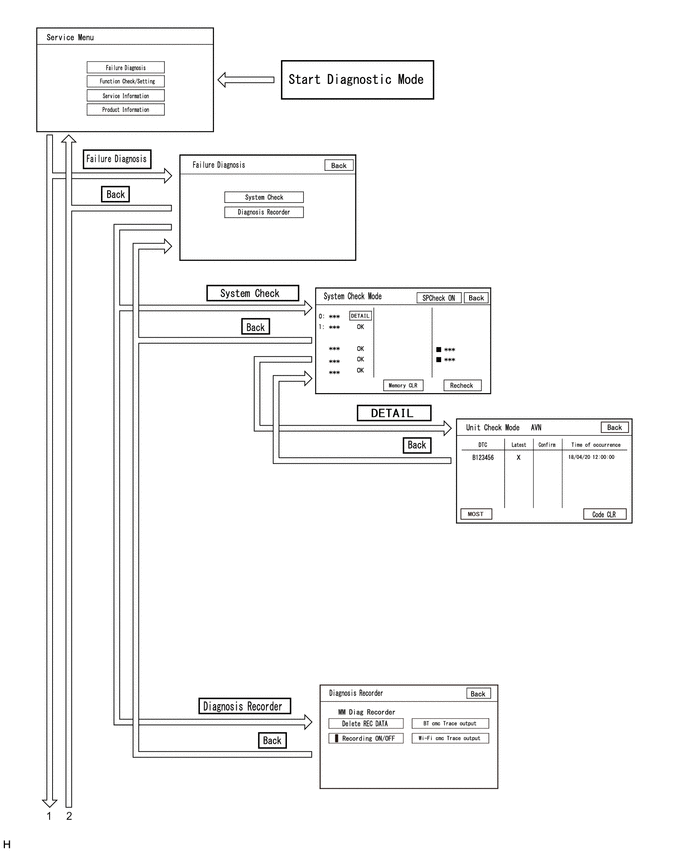
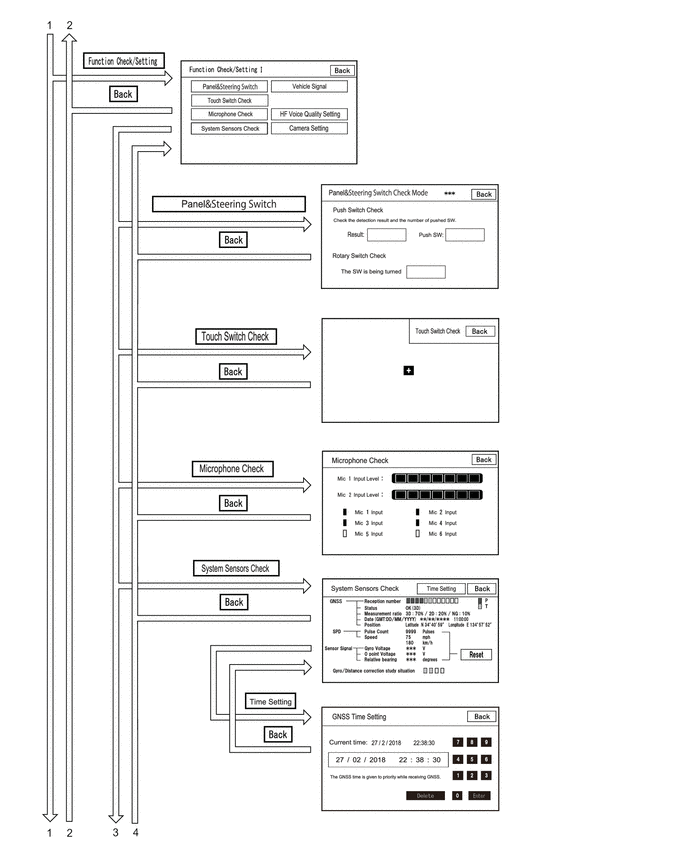
- DIAGNOSTIC MODE SCREEN TRANSITION
- CANCEL DIAGNOSTIC MODE
HINT:
There are 2 methods to cancel diagnosis
- Cancellation method 1
- Press and hold the VOL switch for 3 seconds or more to restart the system.
- Cancellation method 2
- Turn the ignition switch off.
- Cancellation method 1
- SERVICE MENU
HINT:
The service menu screen can be used to perform malfunction diagnosis for each device, confirm functions and information, and collect data.
- Failure DiagnosisFAILURE DIAGNOSIS SCREEN DISPLAY CONTENTS
Display Details Link System Check Display the names of devices connected to the system, and display current and confirmed DTCs as diagnosis results for those devices. Refer to DIAGNOSIS SYSTEM [10/2022 - ] Diagnosis Recorder "Bluetooth" connection history and Wi-Fi connection history can be confirmed - HINT:
Each failure diagnosis screen is created by the radio and display receiver assembly.
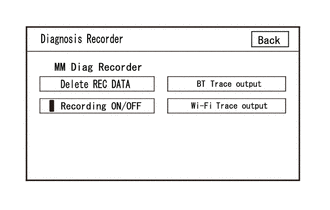
- Diagnosis RecorderDIAGNOSIS RECORDER SCREEN DESCRIPTION
Display Details Link Delete REC DATA Recorded history data can be cleared - Recording ON/OFF When performing a "Bluetooth" trace or Wi-Fi trace, the recorder function can be set to off - BT Trace output "Bluetooth" connection history can be confirmed Refer to OPERATION CHECK [10/2022 - ] Wi-Fi Trace output "Wi-Fi" connection history can be confirmed HINT:
Each diagnosis recorder screen is created by the radio and display receiver assembly.
- Diagnosis Recorder
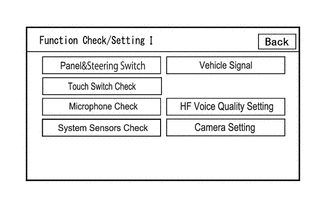
- Function Check/Setting IFUNCTION CHECK/SETTING I SCREEN DESCRIPTION
Display Content Link Panel&Steering Switch Checks the operation of the panel switch and steering switch Refer to OPERATION CHECK [10/2022 - ] Touch Switch Check Checks the operation of the touch switch of the multi-display Microphone Check Checks the connection status of the microphone to the radio and display receiver assembly System Sensors Check
(w/ Navigation System)- Displays GNSS related information
- Sets GNSS date and time settings
- Displays information regarding each sensor in the radio and display receiver assembly
GNSS Check (w/o Navigation System) - Displays information regarding GNSS
- GNSS date and time settings
- Displays information regarding each sensor in the radio and display receiver assembly
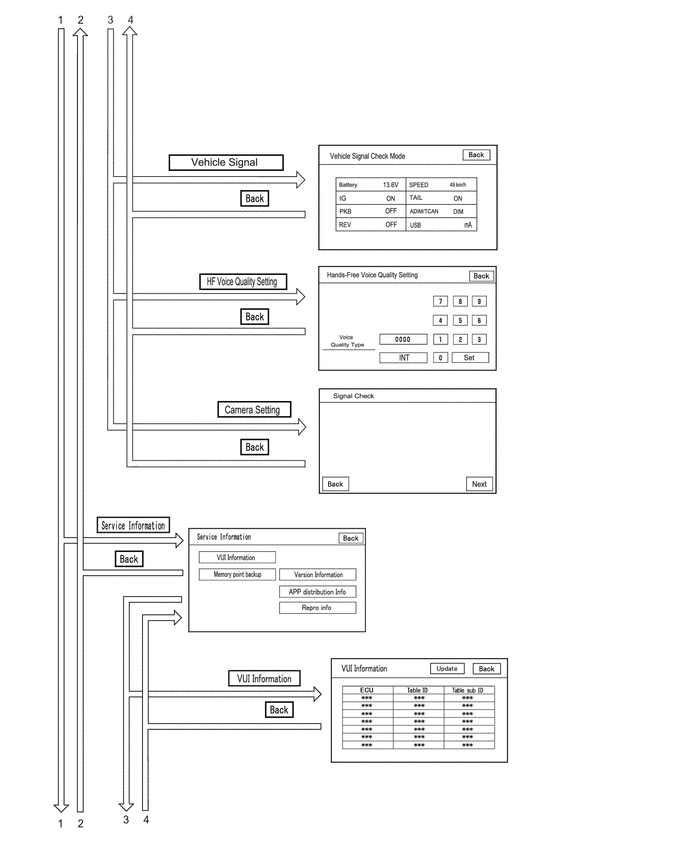
Vehicle Signal Performs an inspection of vehicle side signal received by the radio and display receiver assembly HF Voice Quality Setting HF Voice Quality Setting Camera Setting
(w/ Parking Assist Monitor System)Performs adjustment of parking assist monitor system Refer to HOW TO PROCEED WITH TROUBLESHOOTING [10/2022 - ] Camera Setting
(w/ panoramic View Monitor System)Performs adjustment of panoramic view monitor system Refer to HOW TO PROCEED WITH TROUBLESHOOTING [10/2022 - ] HINT:
Each function check/setting I screen is created by the radio and display receiver assembly.
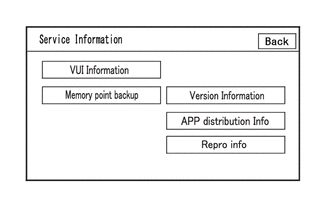
- Service Information
HINT:
The service information screen can be used to confirm information and read the memory.
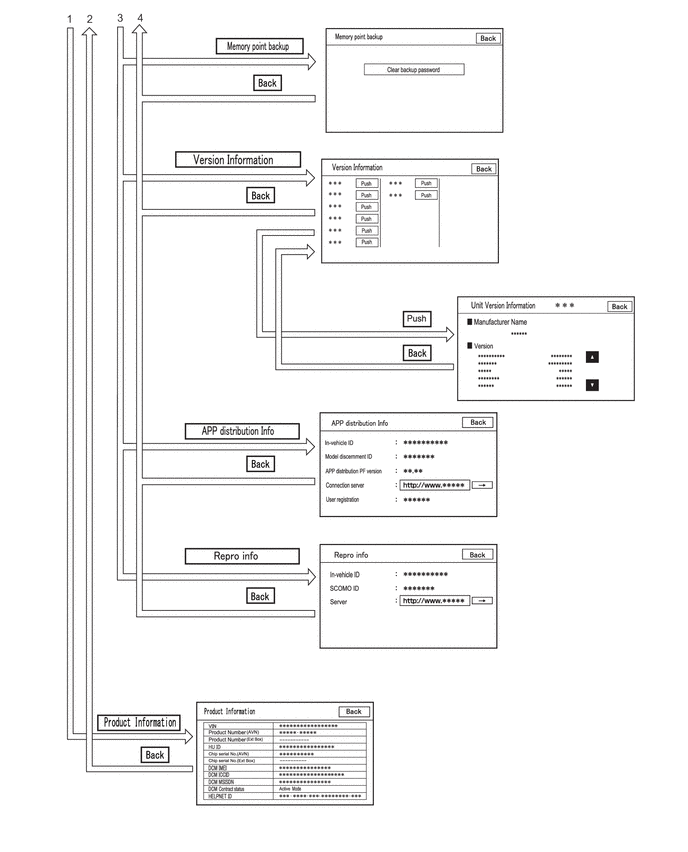
SERVICE INFORMATION SCREEN DESCRIPTIONDisplay Content Link VUI Information Displays information regarding voice recognition Refer to OPERATION CHECK [10/2022 - ] Memory point backup Performs memory read using the GTS - Version Information Displays connected device version information - APP distribution Info Displays in-vehicle device ID, device identification ID, distribution application PF version, registered user information, etc. - Repro info Displays in-vehicle device ID, SCOMO ID, etc. - HINT:
Each service information screen is created by the radio and display receiver assembly.
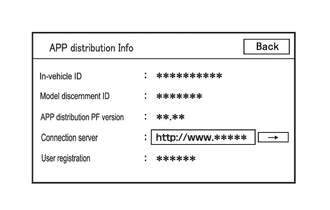
- APP distribution InfoAPP DISTRIBUTION INFO SCREEN DESCRIPTION
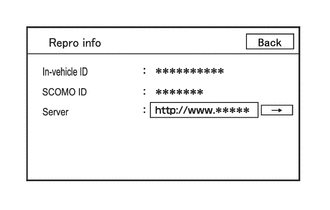
Item Content In-vehicle ID Displays in-vehicle device ID Model discernment ID Displays model discernment ID APP distribution PF version Displays platform version that the application uses Connection Server This item is displayed but is not used User registration User registration information is displayed - Repro infoREPRO INFO SCREEN DISPLAY INFORMATION
Display Details In-vehicle ID Displays in-vehicle device ID of radio and display receiver assembly SCOMO ID This item is displayed but is not used Server This item is displayed but is not used
- APP distribution Info
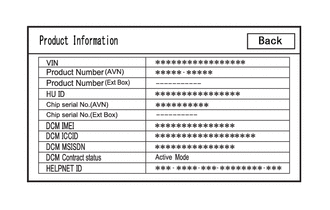
- Product InformationPRODUCT INFORMATION SCREEN DESCRIPTION
Display Content VIN Displays VIN Product Number (AVN) Displays serial number of the radio and display receiver assembly Product Number (Ext Box) This item is displayed but is not used HU ID Displays serial number of the radio and display receiver assembly Chip serial No. (AVN) Displays IC serial number of the radio and display receiver assembly Chip serial No. (Ext Box) This item is displayed but is not used DCM IMEI Displays DCM (telematics transceiver) IMEI DCM ICCID Displays DCM (telematics transceiver) ICCID DCM MSISDN Displays DCM (telematics transceiver) MSISDN DCM Contract status Displays DCM (telematics transceiver) contract status HELPNET ID Displays DCM (telematics transceiver) HELPNET ID
- Failure Diagnosis